
FlowClone helps you copy an SSD to a .flowimg image
file and write that image back onto another SSD. It runs on
macOS and Windows.
-
Image Migration — read a source SSD into a
.flowimgfile. -
Restore Image — write a
.flowimgfile back onto a target SSD.
Direct Clone (disk-to-disk in one step) is coming in a later version.
Install & first launch
macOS
-
Open the
.dmgand drag FlowClone to Applications. - First launch: the app is unsigned, so right-click → Open (once), then confirm.
- Grant Full Disk Access: System Settings → Privacy & Security → Full Disk Access → enable FlowClone. This is required to read/write raw disks and to read images from protected folders (Downloads, Desktop, Documents). Quit and reopen FlowClone after granting it.
Windows
- Run the
*-setup.exeinstaller. - When you create or restore an image, Windows shows a UAC prompt — click Yes (Run as administrator). No separate Full Disk Access step is needed.
- Close anything using the target disk before restoring (Explorer windows, antivirus scans, etc.).
The home screen
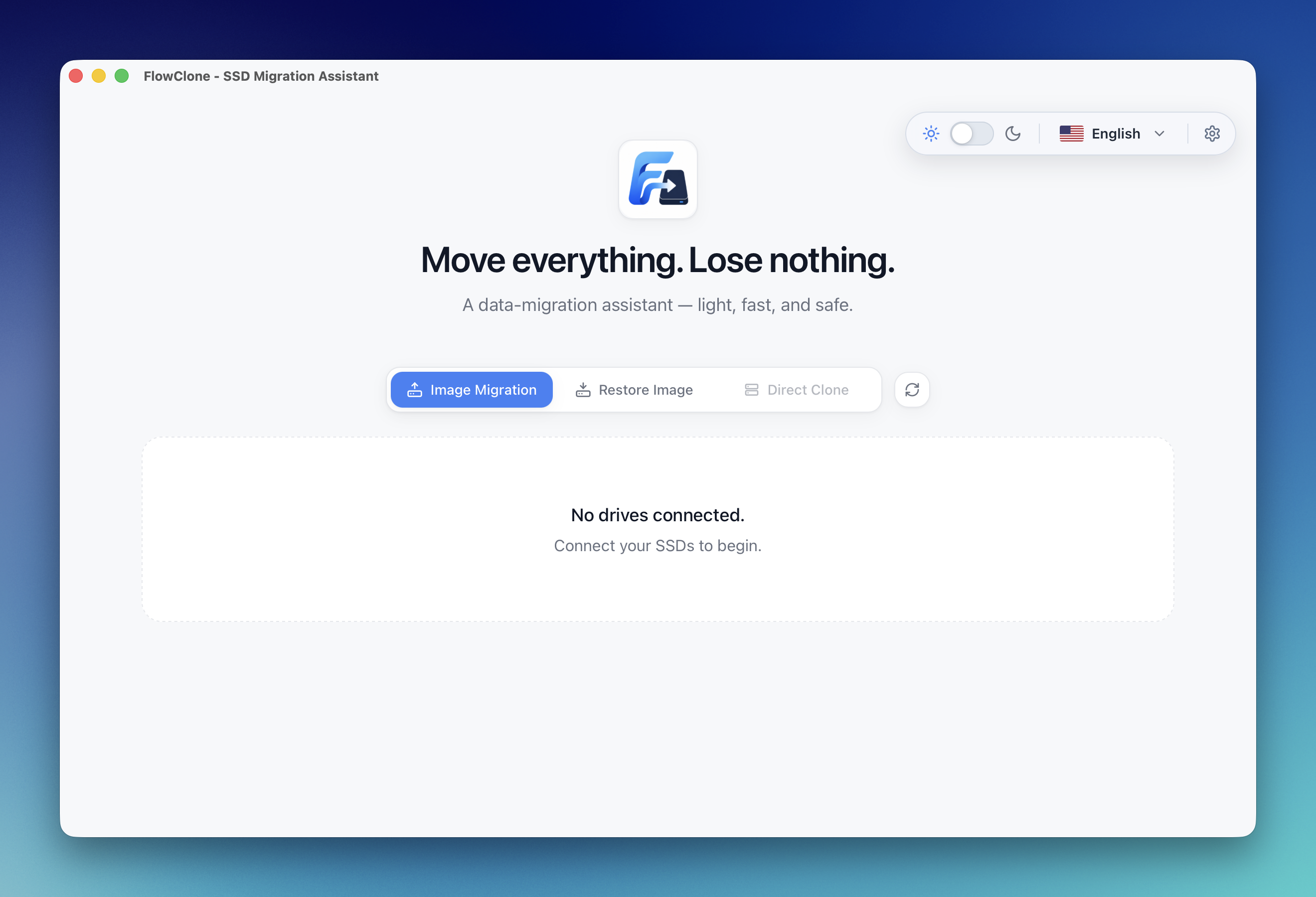
- Mode buttons: Image Migration · Restore Image · Direct Clone (disabled, shows "Coming soon").
- Disk list: updates automatically as you plug in or remove drives.
- Eject: the unplug icon on external disk cards — safely powers down the drive so you can unplug it.
- Top-right: light/dark theme and English/ไทย language toggles, plus a settings gear.
Create an image (Image Migration)
- Choose Image Migration.
- Select the source SSD (the disk you want to copy).
-
Click Choose Image Location and pick where to
save the
.flowimg. - Click Create Image and approve the admin prompt (macOS password / Windows UAC).
- Watch progress: percentage, read/write speed, elapsed, and estimated time. You can Cancel at any time (it asks to confirm).
Notes
-
The image is a full raw copy of the source disk,
so the
.flowimgis about the same size as the disk's capacity (e.g. a 256 GB disk → ~256 GB file). Make sure the destination has enough free space. -
If the source has unreadable sectors, FlowClone
skips them (fills with zeros) and lists them in
<image>.badblocks.txtinstead of failing. - If the drive disconnects mid-copy, FlowClone tries to reconnect and resume. If the app or machine stops unexpectedly, the next launch flags the unfinished image so you can discard it.
Restore an image (Restore Image)
- Choose Restore Image.
- Select the
.flowimgfile. -
Select the target SSD. The target must be:
- larger than or equal to the image's source size,
- external (not the boot/internal disk),
- not read-only.
-
Type
ERASEto confirm, then click Restore Image. - Approve the admin prompt. Watch progress until it completes; the disk remounts when done.
Restoring onto a brand-new or larger SSD
A new, unformatted SSD is fully supported as a target — it's the safest case, since there's no data to lose. Keep these in mind:
- macOS "disk not readable" pop-up. When you plug in a brand-new SSD, macOS shows "The disk you inserted was not readable by this computer." Click Ignore — not Initialize. FlowClone reads the raw disk directly, so the drive still appears in the disk list.
- The target must be at least as large as the source's full capacity (a 256 GB image needs a target of 256 GB or more), regardless of how little data the image actually stores.
-
Restoring onto a larger SSD (e.g. 256 GB → 512 GB):
the image recreates the source's exact layout, so the extra space
is left unallocated — the filesystem does
not grow automatically. Afterward, expand the
partition to use the full disk (macOS Disk Utility,
diskutil, or Windows Disk Management). - Same-size drives can differ slightly. Two "256 GB" SSDs from different brands may not have the exact same byte count. If the target is even slightly smaller than the source, restore is refused with "target too small" — choose a target that is equal or larger (when in doubt, size up).
Eject a disk
Click the eject (unplug) button on an external
disk card to safely power it down before unplugging. On macOS this
runs diskutil eject; on Windows it uses the "Safely
Remove" eject action. The disk disappears from the list when it's
safe to remove.
The .flowimg file
A .flowimg is a raw, byte-for-byte image of the source
disk plus a small header describing it (source model, capacity). On
a built, installed app the file shows the FlowClone icon. Keep it on
a drive with enough free space — it is roughly the size of the
source disk's capacity.
Troubleshooting
| Symptom | Cause / fix |
|---|---|
| "FlowClone CLI not found" |
The CLI sidecar isn't bundled in this build. Use an official
release build, or for development build the CLI
(cargo build -p flowclone-cli).
|
| "Operation not permitted" (macOS) | Full Disk Access isn't granted to the app. Grant it in Privacy & Security, then quit and reopen the app. |
| The disk drops off / "Device not configured" | A failing drive, cable, port, or enclosure. Try a different cable, a direct port (no hub), or another enclosure; a drive that keeps dropping may be failing. |
| "target too small" | The target disk is smaller than the image's source. Use a target that is at least as large. |
| Can't unmount / disk busy | Close apps using the disk (Finder/Explorer windows, antivirus), then retry. |
| Restore left the target unusable | A cancelled or interrupted restore leaves a partial disk. Re-run the restore from the start. |
Safety
-
Restore and (future) clone are destructive.
FlowClone refuses boot, internal, read-only, and too-small
targets, and requires you to type
ERASE. - Image creation is read-only on the source.
-
A full-disk image includes free space, which may contain
previously deleted data — treat
.flowimgfiles as sensitive.