

Themes
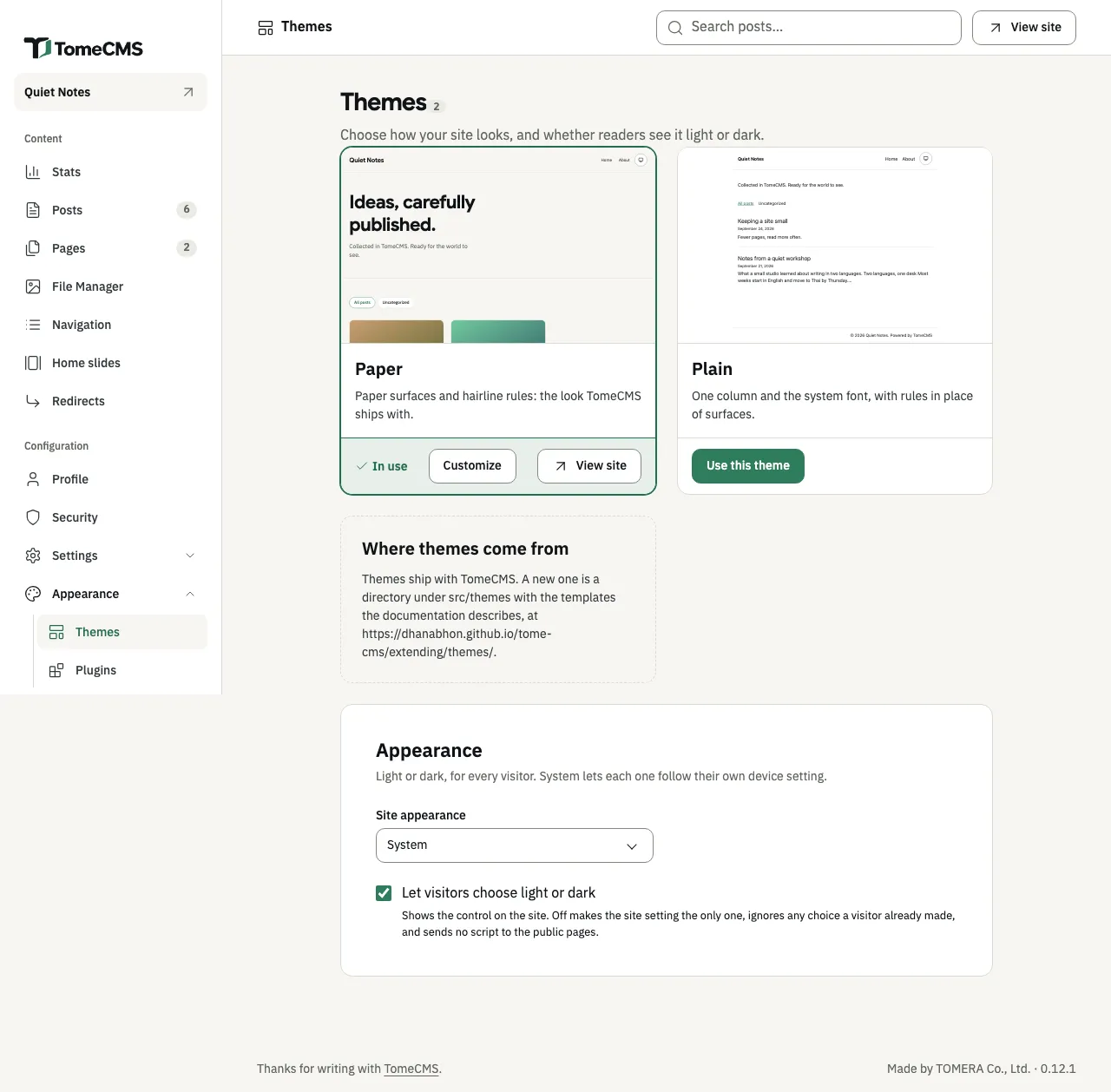
“Themes”, under “Appearance” in “Configuration”, chooses which theme your public site uses, and whether readers see it light or dark. Two themes come with TomeCMS: Paper, which a new site starts with, and Plain, a sparer one. Every control on this screen applies the moment you use it, so there is no save bar at the bottom. Only the “Customize” drawer has a “Save” of its own.
Choosing a theme
Section titled “Choosing a theme”Each theme has a card, and the top of the card is a preview: the theme drawing your own home page, in the site’s default language, with your three newest posts and the theme’s saved settings. The preview is only an image, so clicking it does nothing. Under the preview are the theme’s name and one line about it. That line is written in English on both languages’ screens.
The card of the theme in use says “In use”. “View site” opens the public site in a new tab. On any other card, “Use this theme” switches the site to it straight away, and the screen names the theme now in use, as in “Your site now uses Plain.”
Paper shows a band at the top of the home page, a grid of cards for the posts, and an author block at the end of each post. Plain shows the tagline, the categories and a single column of titles with their dates and excerpts, in the reader’s system font. It has no hero, so “Home slides” do not show with it, and it has nothing to customize.
Themes come with TomeCMS, as the card “Where themes come from” says. Nothing on this screen installs one.
Customizing Paper
Section titled “Customizing Paper”“Customize” is on the card of the theme in use, when that theme has settings. For Paper it opens “Customize Paper” at the side of the screen. Change what you want and press “Save”. The drawer closes and the screen says “Saved.”
Settings are kept for each theme separately. Paper’s stay as you left them while Plain is in use, and come back when you switch to Paper again.
| Setting | Choices | What it does |
|---|---|---|
| “Hero” | “Text” (to begin with), “Moving text”, “Covers of the newest posts”, “Your slides”, “Hidden” | The band above the grid. “Text” shows the headline. “Moving text” reveals it once, when the reader arrives. “Covers of the newest posts” turns through up to five of the newest posts that have a cover, and needs at least two. “Your slides” shows what you keep under Home slides. “Hidden” leaves the band out. When covers or slides have nothing to show, the band shows the headline instead. A reader who asked their device for less motion sees no movement. |
| “Headline” | Up to 60 characters | The words in a text hero. Left empty, the theme writes its own in the language the page is read in: “Ideas, carefully published.” in English. Not shown with covers or your slides. |
| “Slides turn by themselves” | On (to begin with) or off | For your slides only. A reader can always stop them, and a reader who asked for less motion never sees them turn. |
| “Seconds per slide” | “4”, “6” (to begin with), “8” | How long each of your slides stays before the next. |
| “Slides change by” | “Sliding” (to begin with), “Fading” | Fading needs a browser that can animate as the page scrolls. Other browsers slide. |
| “Posts per load” | “6” (to begin with), “12”, “18” | How many posts the home page shows at a time. Multiples of six fill the last row at one, two or three cards across. |
| “Cards across” | “2”, “3” (to begin with), “4” | The most cards in a row, on the widest screen. A narrower screen holds fewer, and a phone shows one. |
| “Keep the header in view” | On or off (to begin with) | The header stays at the top of the window while the reader goes down the page. |
| “Reading progress bar” | On or off (to begin with) | A thin line across the top of a post that fills as the reader goes down it. |
| “Author links” | “Words” (to begin with), “Icons”, “Icons and words” | How the links from your profile appear under the author at the end of a post. A link to GitHub, X, LinkedIn, Facebook, Instagram or YouTube gets that site’s mark, and any other link a plain link icon. |
| “Load more as the reader scrolls” | On (to begin with) or off | New rows appear as the reader nears the end of the grid. Off leaves the “Older posts” link, which a reader without JavaScript follows anyway. |
Searching the posts
Section titled “Searching the posts”Both bundled themes put a search box above the posts on the home page. It finds the published posts, in the language of the page, that contain every word typed, whether the word is in the title, the excerpt or the text. It matches inside words and ignores case, which is what lets it work in Thai. The box is an ordinary form, so it works without JavaScript, and a page of results is kept out of search engines. Paper hides its hero while results are on screen, and choosing a category leaves the search. A reader who searches more than 60 times in a minute is asked to wait, so a script cannot keep the database busy. There is nothing to switch on. A headless site asks for the same thing with q.
Light and dark for readers
Section titled “Light and dark for readers”The “Appearance” card at the bottom of the screen decides how the public site looks to readers.
“Site appearance” is “System”, “Light” or “Dark”, for every reader. “System” lets each reader’s device choose.
“Let visitors choose light or dark” is ticked to begin with. It puts a “Theme” control in the site’s header, where a reader picks “Light”, “Dark” or “System” for themselves. Their choice is kept in their own browser, as What a reader’s browser keeps describes. Untick it and the site setting is the only one: a choice a reader made before is ignored, and the public pages carry no script for the control.
The admin has its own light and dark, “Admin appearance” at the bottom of the sidebar. It applies to the admin on the device you set it on, and readers never see it.
This screen and “General” under “Settings” save to the same record. If “Settings” was saved in another tab after this screen opened, the change here is refused, so it cannot undo that save. Reload the screen and make the change again.