

Home slides
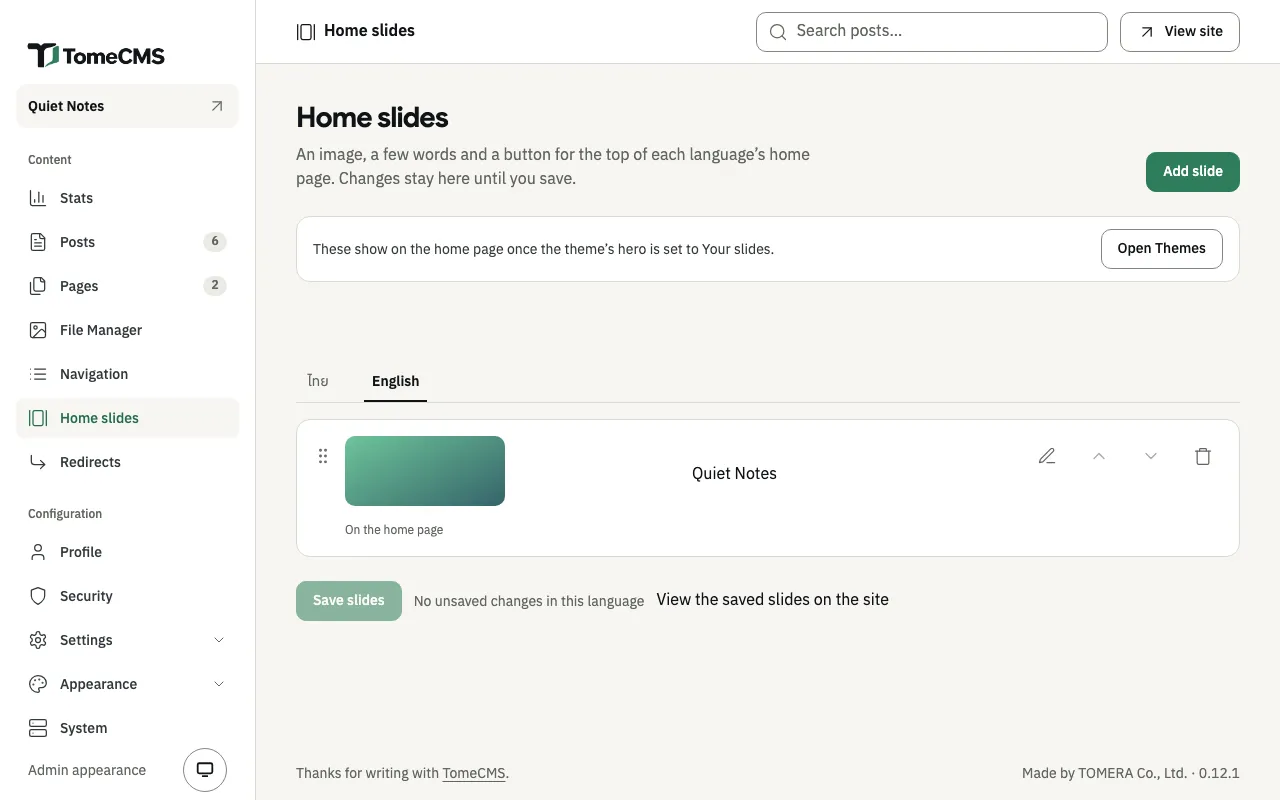
“Home slides”, under “Content”, keeps the slides at the top of the home page. A slide is an image, with a heading, a line of words and a button if you want them. Each language has its own slides, as it has its own menus, so a Thai slide and an English slide are two slides.
The slides show with the Paper theme, once its “Hero” setting under “Themes” is “Your slides”. Until then, the screen says so above the list and offers “Open Themes”. One slide shows as a still banner, and two or more turn as a slider. Whether they turn by themselves, and how fast, are Paper settings too. The Plain theme has no hero, so it shows no slides.
Adding a slide
Section titled “Adding a slide”Choose the language first, “ไทย” or “English”. “Add slide” opens “New slide” for the language whose tab is open.
- Under “Image”, press “Choose image” and pick one from the File Manager, or upload one there. The drawer shows the image’s size in pixels and in bytes. It warns about an image over 800 KB, which makes the home page slow to appear, and one under 1,600 pixels wide, which looks soft on a wide screen.
- Under “Words”, type a “Heading”, up to 80 characters, and “Text under the heading”, up to 200. Either can stay empty.
- Under “Button”, type the “Button text”, up to 30 characters, or leave it empty for a slide without a button. Once it has text, choose where “The button leads to”: “Home”, “A page” written in this language, or “An address”. An address starts with
/, such as/contact, or is a fullhttporhttpsaddress, and only an address can “Open in a new tab”. - Under “How it looks”, choose the “Text position” and how much to “Darken the image”, “No”, “A little” or “A lot”. “Keep in view on a phone” picks one of nine points, from “Top left” to “Bottom right”. A phone crops a wide image, and that part of it stays on screen.
- Under “When it shows”, “Show this slide” is on to begin with. “Starts” and “Ends” are optional: left empty, the slide starts now and never ends. You enter the times in your device’s time.
- Press “Done”. The slide joins the list, and the admin says “Added a slide. Save to publish it.”
“Done” checks the slide first and names what is missing. A slide needs an image. Words need a darkened image under them, so “No” is refused while the slide has a heading or words under it. A slide with no heading needs an image with “Alt text” in the File Manager, because that description is what a screen reader says for the slide. With a heading, the site reads the heading instead. The end has to come after the start.
The list
Section titled “The list”Each row shows the slide’s image, its heading or “Image only”, and where it stands.
| The row says | Because |
|---|---|
| “On the home page” | The slide is live now. It shows on the site while Paper’s “Hero” is “Your slides”. |
| “Starts” and a date | Its start is still ahead. |
| “Ended” | Its end has passed. |
| “Hidden” | “Show this slide” is off. |
| “Live, but not shown: the home page shows the first five.” | Five slides above it are already showing. |
| “Not shown: its image needs a description, or the slide a heading.” | It has no heading, and its image’s alt text was cleared after the slide was saved. |
A language keeps up to ten slides, and the home page shows the first five that are live. The rest wait below them, so next month’s slides can sit beside this month’s. With ten in the list, “Add slide” says “A language keeps up to ten slides.”
A slide with a button shows “Button:” and its text. When the button’s page is not published yet, or has been deleted, the row says the button is not shown.
The pencil, “Edit”, opens a slide again. “Move up” and “Move down” change its place, and so does dragging it by the handle on its left. “Remove” takes it out of the list.
Saving
Section titled “Saving”Nothing reaches the site until you press “Save slides”, and each language is saved on its own. A tab with changes not saved yet has a dot after its name, and the line beside the button says “Unsaved changes in this language”. Once saved, the admin says “Slides saved.” “View the saved slides on the site” opens that language’s home page in a new tab.
A slide can break after it was saved, when its button’s page is deleted or its image loses its alt text. The next save then stops, says which slide needs a change and why, and opens it. If the save fails for another reason, your edits stay on the screen, and “Retry” tries again.
While a slide uses an image, the File Manager refuses to delete that image and names the slide, as The file library explains.
A headless site reads the same slides from /api/v1/content/slides, as The headless API describes: the ones that are live now, in order, at most five.