

Cloudflare Turnstile
Cloudflare Turnstile puts a Cloudflare challenge on the admin’s sign-in form. The server checks each sign-in attempt with Cloudflare before it checks your passkey, and an attempt that fails the challenge goes no further. It guards signing in and nothing else. Readers never meet it, and it never stands in the way of recovery.
The Plugins screen
Section titled “The Plugins screen”“Plugins”, under “Appearance” in “Configuration”, has a card for each plugin that comes with TomeCMS. Every plugin is off until you switch it on.
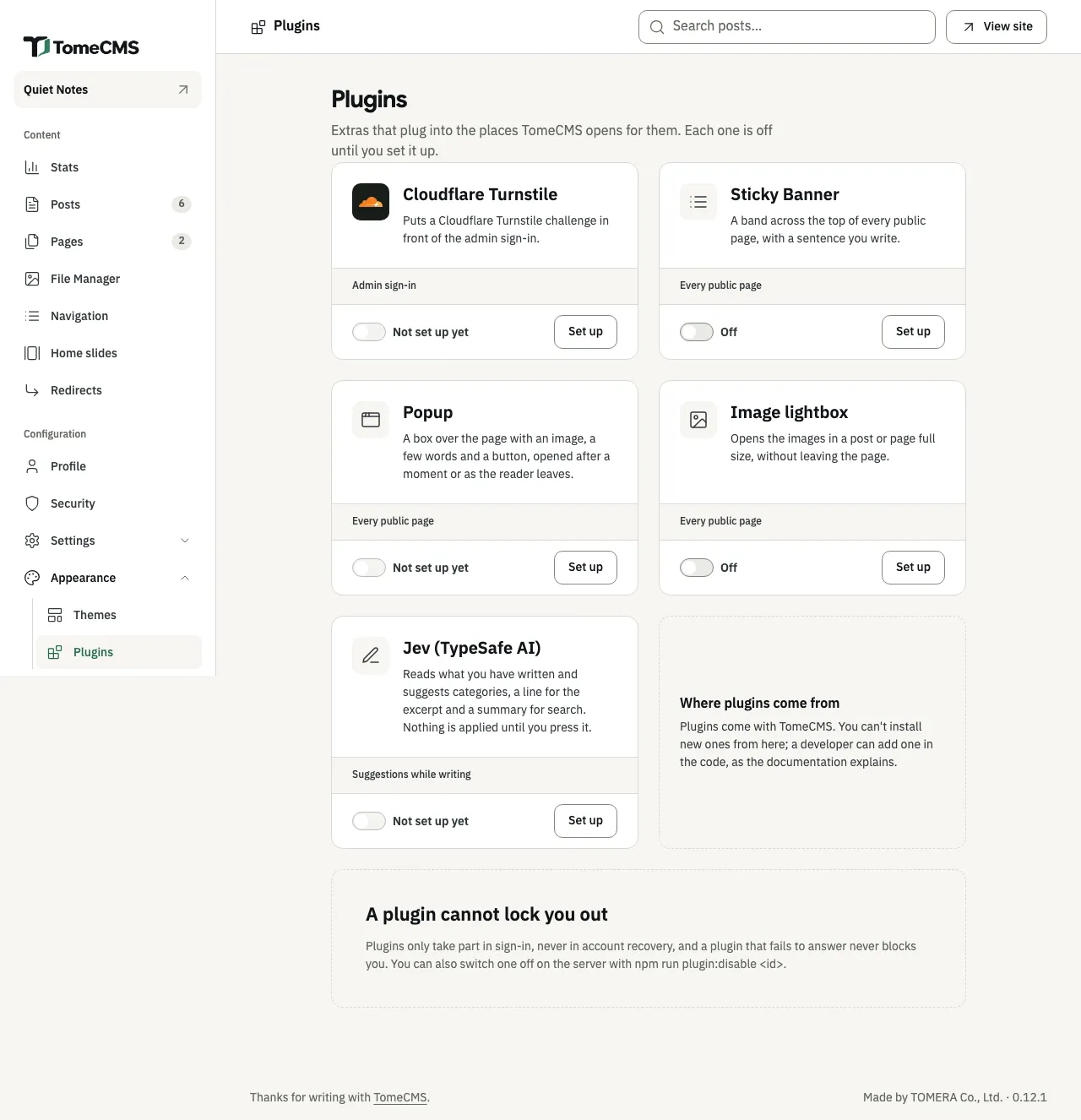
The band on each card says where the plugin acts: “Admin sign-in”, “Every public page” or “Suggestions while writing”. The switch at the foot of the card applies as soon as you press it, and the word beside it says where it stands: “On”, “Off”, or “Not set up yet” while a setting the plugin needs is still empty. A plugin that is not set up cannot be switched on.
“Set up” opens the plugin’s settings at the side of the screen, under “Set up” and the plugin’s name. While something it needs is missing, the top of the drawer says “Fill in what it needs before switching it on.” Press “Save” and the card says “Saved.” Saving leaves the plugin on or off, as it was.
Some settings are secret, such as a key for another service. A secret is stored encrypted with TOME_CMS_CONTEXT_SECRET and is never sent back to the browser, so its field stays empty, and once a key is stored it says “Stored. Leave blank to keep it.” Leave it blank and the stored key stays. Type a new one to replace it. Configuration explains why that secret must not change once the site is installed.
Plugins come with TomeCMS, as the card “Where plugins come from” says, and nothing on this screen installs one. The card “A plugin cannot lock you out” says why: a plugin only takes part in sign-in, never in account recovery, and a plugin that fails to answer never blocks you. Any plugin can also be switched off from the server with npm run plugin:disable and its id: turnstile, typesafe for Jev, notice for Sticky Banner, popup or lightbox.
Setting it up
Section titled “Setting it up”- In your Cloudflare dashboard, add a Turnstile widget for your site’s host name, the one in
TOME_CMS_PUBLIC_URL. Cloudflare gives it a site key and a secret key. - On the “Cloudflare Turnstile” card, press “Set up”, paste both keys and press “Save”.
- Switch it on. The card now says “On”.
| Setting | In Thai | What it does |
|---|---|---|
| “Site key” | “Site key” | The key that shows the challenge on the sign-in form. It is public, and it reaches your browser in the form. Required. |
| “Secret key” | “Secret key” | The key the server uses to ask Cloudflare whether a challenge was passed. Stored encrypted and never shown again. Required. |
The challenge appears only while both keys are stored.
Signing in with it on
Section titled “Signing in with it on”The sign-in form shows the challenge above the passkey button. When you sign in with your passkey, the server first sends Cloudflare the challenge’s answer and waits up to five seconds for a reply.
| Cloudflare says | What happens |
|---|---|
| The challenge was passed | The server goes on to check your passkey, as usual. |
| The answer is wrong, was used already, or is missing because the challenge never loaded | The attempt is refused, and the form says “The sign-in check was not passed.” It tells you to try again, or to switch the plugin off on the server. |
| Nothing it can use: the secret key is wrong, Cloudflare answers with an error, cannot be reached, or does not answer in time | The server logs the reason and goes on to check your passkey. |
The last row is why a mistyped secret key cannot lock you out. The challenge never guards creating a passkey either, so /recovery works whether the plugin is on or not. If the challenge will not load in your browser, switch the plugin off from the server as Getting back in shows.
The challenge belongs to the sign-in page. When you are already signed in and the admin asks for your passkey once more, to install an update or to make new recovery codes, it is neither shown nor checked. On 1.1.0 and earlier it was checked, and those two stopped: see Troubleshooting.
What Cloudflare receives
Section titled “What Cloudflare receives”In your browser, the admin’s sign-in page loads Cloudflare’s script from challenges.cloudflare.com, and the challenge runs there. Cloudflare sees what any site you load something from sees, your address included. No other page loads it, and a reader of the public site never reaches Cloudflare through this plugin.
From the server, each sign-in attempt sends Cloudflare’s siteverify address the secret key, the answer the challenge gave your browser, and the address the attempt came from. Nothing about your content or your readers is sent. What a reader’s browser keeps lists every service the site can reach.