

Writing
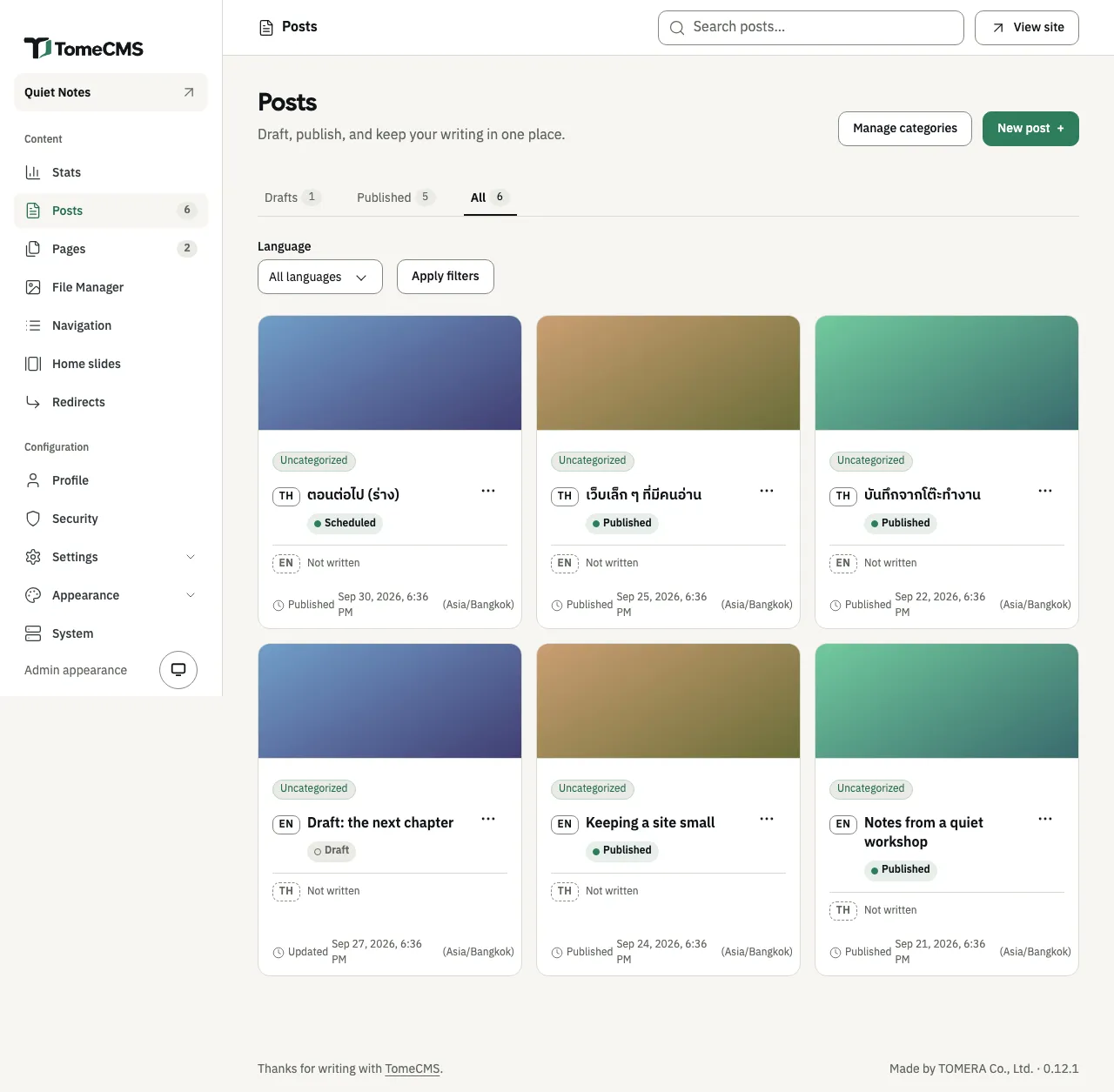
“Posts”, under “Content” in the admin, lists every post you have written, and the editor is where you write one. A post can have a Thai edition and an English edition. Each is written on its own, and the list keeps them together on one card.
Finding a post
Section titled “Finding a post”The list opens on “Drafts”. “Published” and “All” sit beside it, each with a count. “Language” narrows the list to “Thai” or “English” once you press “Apply filters”, and “Search posts…” at the top of the admin finds a post by its title.
Each card is one post. It shows every edition you have written, with its status, and a “Not written” line for a language you have not. Press a title to open that edition in the editor, or “Not written” to start the other language. The “…” beside an edition has “Edit”, “Preview”, “Duplicate”, “Publish” or “Unpublish”, and “Delete”.
“Duplicate” makes a new draft from that edition, in the same language, with “(copy)” after its title (“(สำเนา)” for a Thai edition) and the same categories. It is a post of its own, and does not become this post’s other language. “Delete” removes that language edition only, and cannot be undone.
Starting a post
Section titled “Starting a post”Press “New post”. The editor opens in the site’s default language. Type the title where “Untitled post” is in grey, and the post below it, where the editor says “Type ‘/’ for commands”. A title takes up to 200 characters.
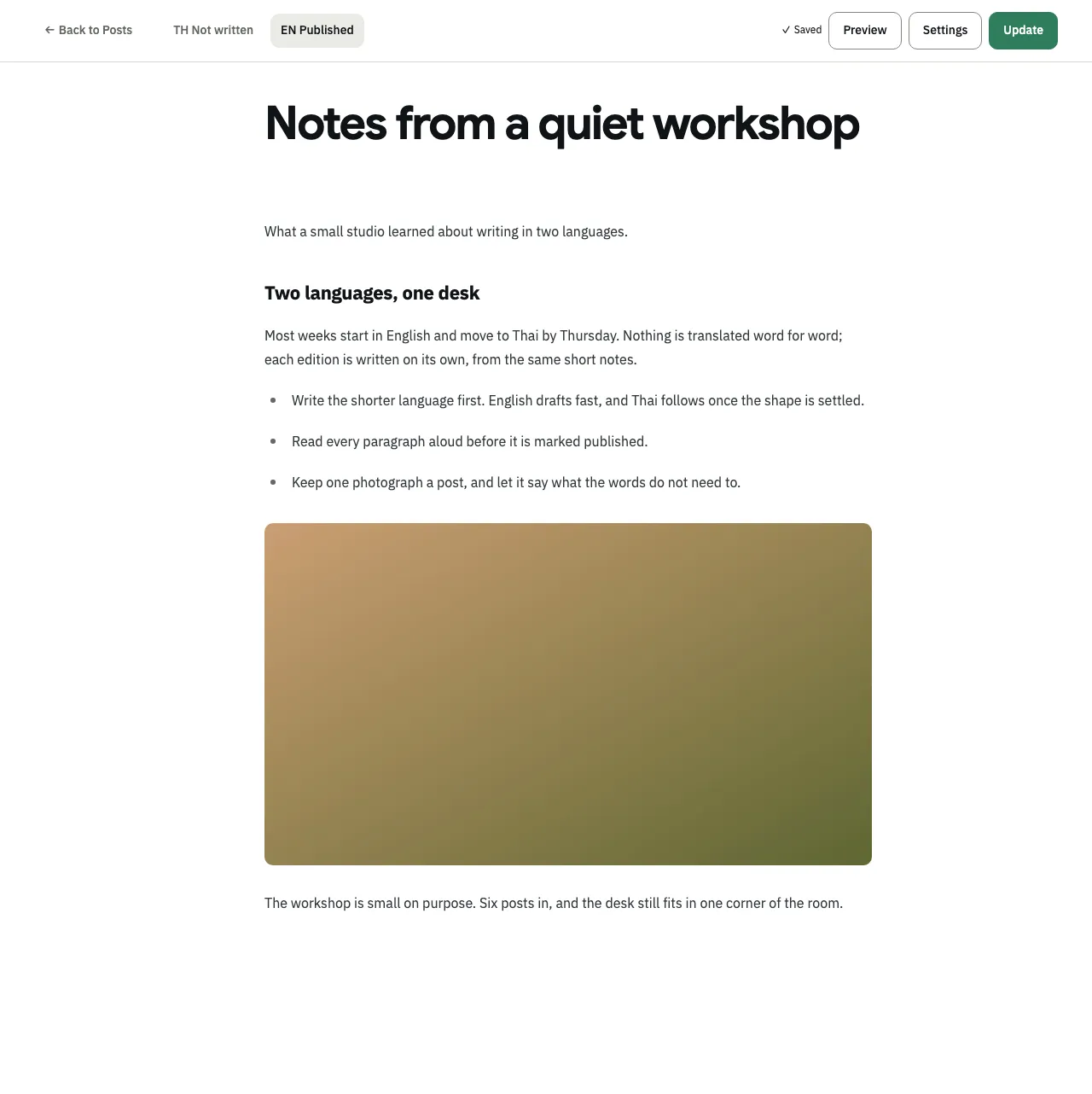
The editor saves on its own a moment after you stop typing, once the post has a title. The bar says “Saving…” and then “Saved”. If a save fails, it says “Save failed” and offers “Retry save”, and what you wrote stays on the screen. “Back to Posts” saves before it leaves. When it cannot save, the admin asks first, with “Leave without saving?”.
“Preview” saves the post and opens it in a new tab, drawn by the site’s theme, even while it is a draft. It needs a title.
Adding blocks
Section titled “Adding blocks”Type / at the start of a line, or after a space, and a menu opens: “Heading 2”, “Heading 3”, “Bullet list”, “Numbered list”, “Code block”, “Quote”, “Table”, “File” and “Video”. Keep typing to narrow it, and press Enter to choose.
The “+” button beside the line you are on (“Add block”) opens the longer list. It has “Text” and “Heading 1” as well, and “Image”. Use the arrow keys and Enter, or click.
A new table has three rows and three columns, the first row a header. While the cursor is in it, a bar over its corner has “Add row”, “Add column”, “Delete row”, “Delete column” and “Delete table”, and the same actions come first in the / menu.
Formatting words
Section titled “Formatting words”Select some words and a bar appears over them: “Bold”, “Italic”, “Underline”, “Strikethrough”, “Link”, “Inline code” and “Text colour”, then “Align left”, “Align center” and “Align right”. Alignment applies to whole lines, or to the table cells the cursor is in. Ctrl+U (⌘U on a Mac) underlines and Ctrl+Shift+S (⌘⇧S) strikes through as well.
“Text colour” opens a row of swatches under the bar: “Default”, “Red”, “Orange”, “Green”, “Blue”, “Purple” and “Grey”. A colour is saved by its name, and the theme gives each one a shade for light mode and another for dark mode, so coloured words stay readable when a reader’s screen is dark. “Default” takes the colour off.
“Link” opens “Add a link”. Paste an http or https URL into “URL” and press “Apply link”. “Open in a new tab” is on to begin with; switch it off for a link that should open in the same tab. To take a link off, select the linked words and press “Link” again.
Images
Section titled “Images”Choose “Image” from the “+” menu. The “File Manager” opens as a picker: press an image to put it where the cursor was, or “Upload image” to add a new one and put it there. An image chosen this way carries the “Alt text” it has in the File Manager, or its file name when it has none.
You can also drop an image file onto the post, or paste one. It shows faintly while it uploads to the File Manager, then takes its place. The File Manager takes JPEG, PNG, WebP, GIF and AVIF, up to 8 MB. Anything else gets “Image upload failed” and the reason.
An image copied from another website together with its text can keep its address on that site, and every reader’s browser then fetches it from there. What a reader’s browser keeps explains what that site gets to see. Upload the image instead.
Choose “File” from the “+” menu or from /. The picker shows files only: PDF, Word, Excel, PowerPoint, CSV, text and ZIP, up to 25 MB each. Press one, or “Upload file” to add a new one.
The file goes into the post as a card with its name, its type and its size. A reader who clicks it downloads the file, except a PDF, which opens in a new tab.
Videos
Section titled “Videos”Paste a YouTube or Vimeo link alone on an empty line and it becomes a video. Pasted into a sentence, or on an empty line inside a table, a list or a quote, it stays a link. You can also choose “Video” from the “+” menu or from /, outside a table. It opens “Add a video”: paste the link into “Link” and press Enter. A link that is not to one YouTube or Vimeo clip gets “Use a YouTube or Vimeo link to one clip.”
The video goes into the post at once as a card with the clip’s id and “YouTube” or “Vimeo”. A moment later the card shows the clip’s title and its poster, which the server fetched from YouTube or Vimeo and keeps in the File Manager. The card moves and deletes like any other block.
When YouTube or Vimeo gives no title and poster, the editor tells you why under “The video is in, without its poster”: the clip may be private, or the server could not reach YouTube or Vimeo in time. The clip stays in the post, without a poster, and you can still publish it. Readers who can see the clip can play it.
On the site, a reader sees the poster with a play mark, and nothing loads from YouTube or Vimeo until they press play. What a reader’s browser keeps explains what happens then.
The post’s settings
Section titled “The post’s settings”“Settings” in the bar opens “Post settings”. It saves along with the rest of the post.
| Field | What it does |
|---|---|
| “URL name” | The post’s address, after /en/blog/ or /th/blog/. While a new post is open for the first time, it follows the title until you change it by hand. Once the post is opened again, changing the title leaves the slug as it is. A Thai title gets a Thai address, with a hyphen between words. |
| “Publish at” | When the post goes out. Publishing explains it. |
| “Categories” | Tick the ones the post belongs under. With none ticked, it goes under the default one. Both language editions share the same categories. “Manage categories” saves the post and opens the list of categories. |
| “Cover image” | The image on the post’s card and at the top of the post. “Choose image” opens the File Manager. 1600 × 900 pixels and under 2 MB is best, and 8 MB is the most it takes. |
| “Excerpt” | Under “Homepage card”: the line on the post’s card, up to 120 characters. Left blank, the card uses the search description, then the opening of the post. |
| “Search title” | The title in search results, up to 70 characters. Left blank, the post’s own title is used. |
| “Search description” | Shown below the post’s title in the Paper theme, and used in search results and when the post is shared. Up to 320 characters. |
Writing the other language
Section titled “Writing the other language”The chips in the bar show each language and how it stands, such as “EN Published” and “TH Not written”. Press the other language’s chip and the admin saves this edition, then opens that one. A new edition starts empty, with this one’s cover image and categories. It has its own title, address and settings, and you publish it on its own.
“Not written” on the post’s card in the list does the same.
Suggestions while writing
Section titled “Suggestions while writing”With the “Jev (TypeSafe AI)” plugin switched on, under “Appearance” and then “Plugins”, the settings drawer has three more buttons. “Suggest from the text” offers categories you already have. “Suggest a line from the text” offers a sentence from the post for the excerpt, and “Suggest a description from the text” one for the search description.
Nothing is filled in for you. A suggested category is a chip you press to add it, and a sentence has its own “Use this line” or “Use as the description” button. The post’s text goes to TypeSafe AI when you press one of the three buttons, and at no other time. Without the plugin, the buttons are not there.
The page editor works the same way. Pages and menus covers what is different about pages.