
Settings, profile and passkeys
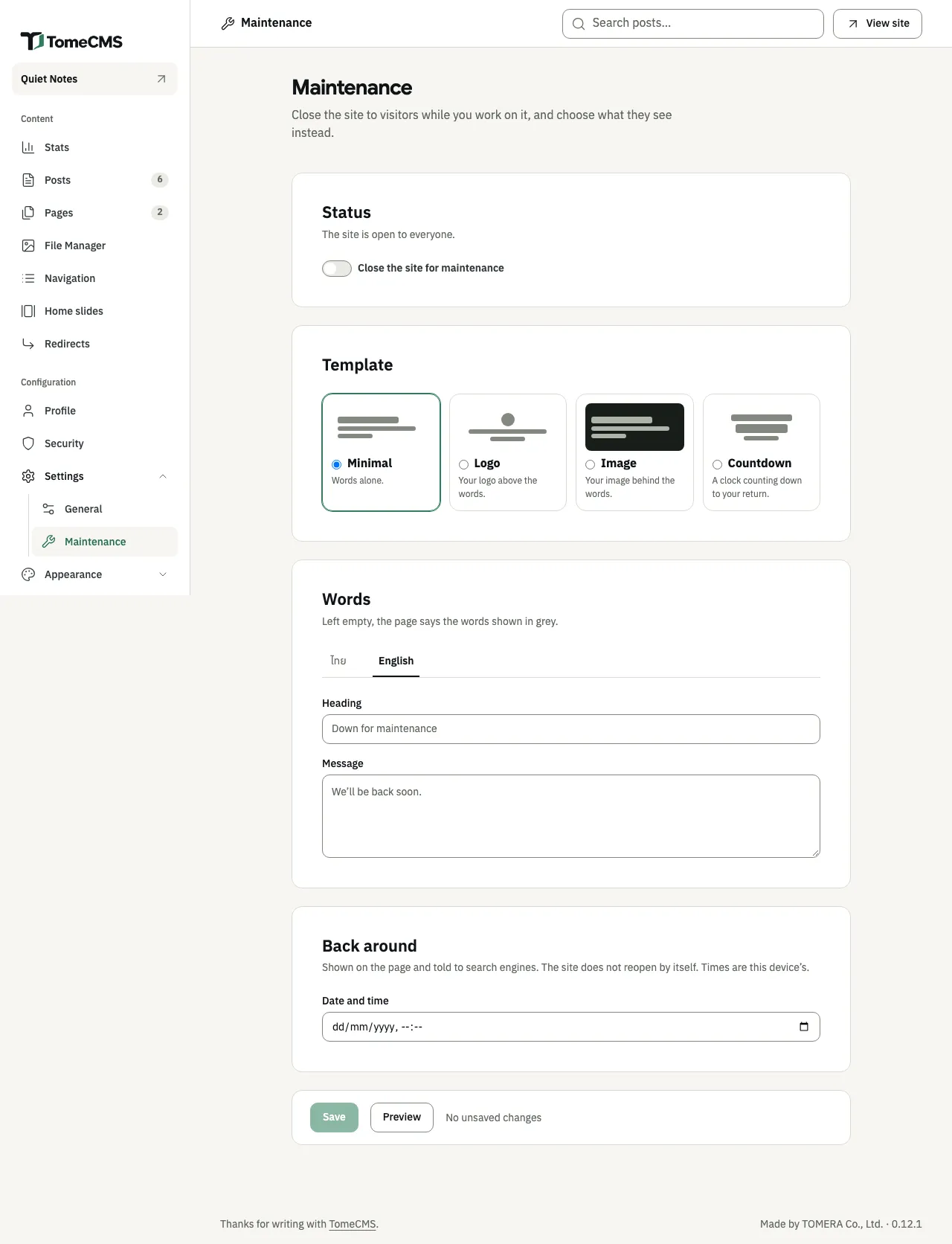
The screens under “Configuration” hold what belongs to the site as a whole, and to you as its owner. “General”, under “Settings”, names the site and sets its language and clock. “Profile” is the author readers see beside your writing. “Security” keeps the passkeys you sign in with, and your recovery codes. “Maintenance”, also under “Settings”, closes the site while you work on it.
General settings
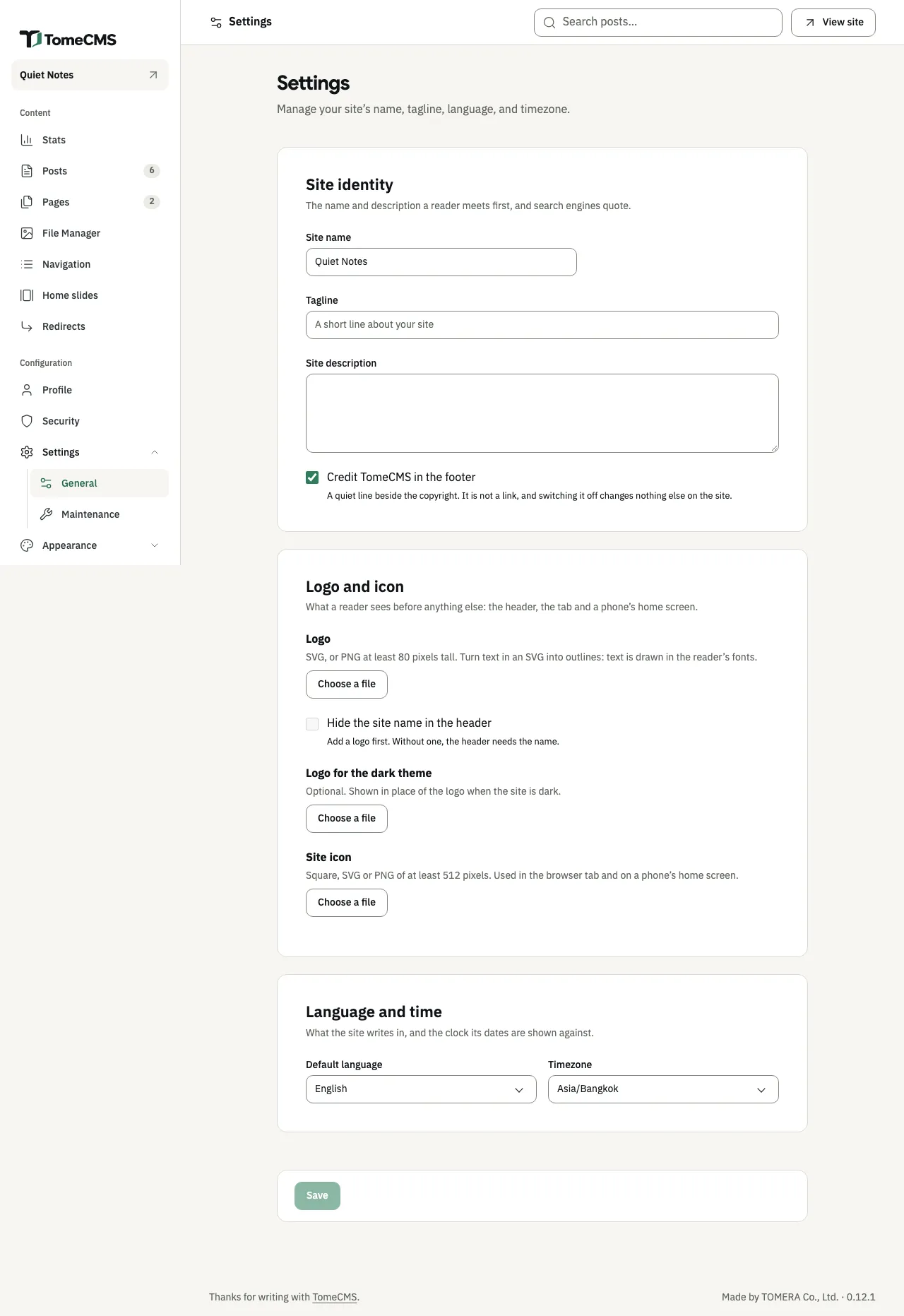
Section titled “General settings”Open “Settings”, then “General”. The screen has three parts, and one “Save” button at the bottom for all of them. While something is not saved yet, the line beside the button says “Unsaved changes”.
Site identity
Section titled “Site identity”| Field | What it does |
|---|---|
| “Site name” | The site’s name, in the header, the browser tab, search results and the footer. It is required, up to 120 characters. |
| “Tagline” | A short line on the home page, under the headline, up to 120 characters. Left empty, the site shows a line of its own in the reader’s language. |
| “Site description” | Up to 160 characters, for search results and shared links on any page without a description of its own, and for the RSS feed. |
| “Credit TomeCMS in the footer” | A plain line beside the copyright, which is not a link. It is on to begin with, and turning it off changes nothing else. |
Logo and icon
Section titled “Logo and icon”A file here applies as soon as you choose it, without “Save”, and the admin says “Saved.” under it. “Remove” takes it off again. Each file can be up to 1 MB. An SVG has its unsafe parts removed first, and is refused if it cannot be drawn once they are gone.
- “Logo” goes in the site’s header. Use an SVG, or a PNG at least 80 pixels tall, and JPEG and WebP are taken too. Turn any text in an SVG into outlines, because otherwise the reader’s own fonts draw it.
- “Hide the site name in the header” lets the logo stand in for the name. It needs a logo, and it is saved with “Save”. The name stays in the tab, in search results and in the footer.
- “Logo for the dark theme” is optional, and is shown in place of the logo while the site is dark. Without one, the logo is used on the dark theme as well, and the admin shows a preview of it there.
- “Site icon” is for the browser tab and a phone’s home screen. Use a square SVG or PNG, at least 512 pixels across. An icon under 180 × 180 pixels is refused.
These files are kept apart from the file library, and are not listed there.
Language and time
Section titled “Language and time”“Default language” is “Thai” or “English”. The admin speaks it, the site’s bare address opens the home page in that language, and a new post or page starts in it.
“Timezone” is “Asia/Bangkok” or “UTC”. Dates on the site and in the admin are shown in it, and Stats counts its days by it.
Press “Save”. When you change the site name, the language or the time zone, the admin reloads so the change shows everywhere at once. Otherwise it says “Saved.”
Profile
Section titled “Profile”“Profile” is the author the site shows with your writing. Nothing here is required.
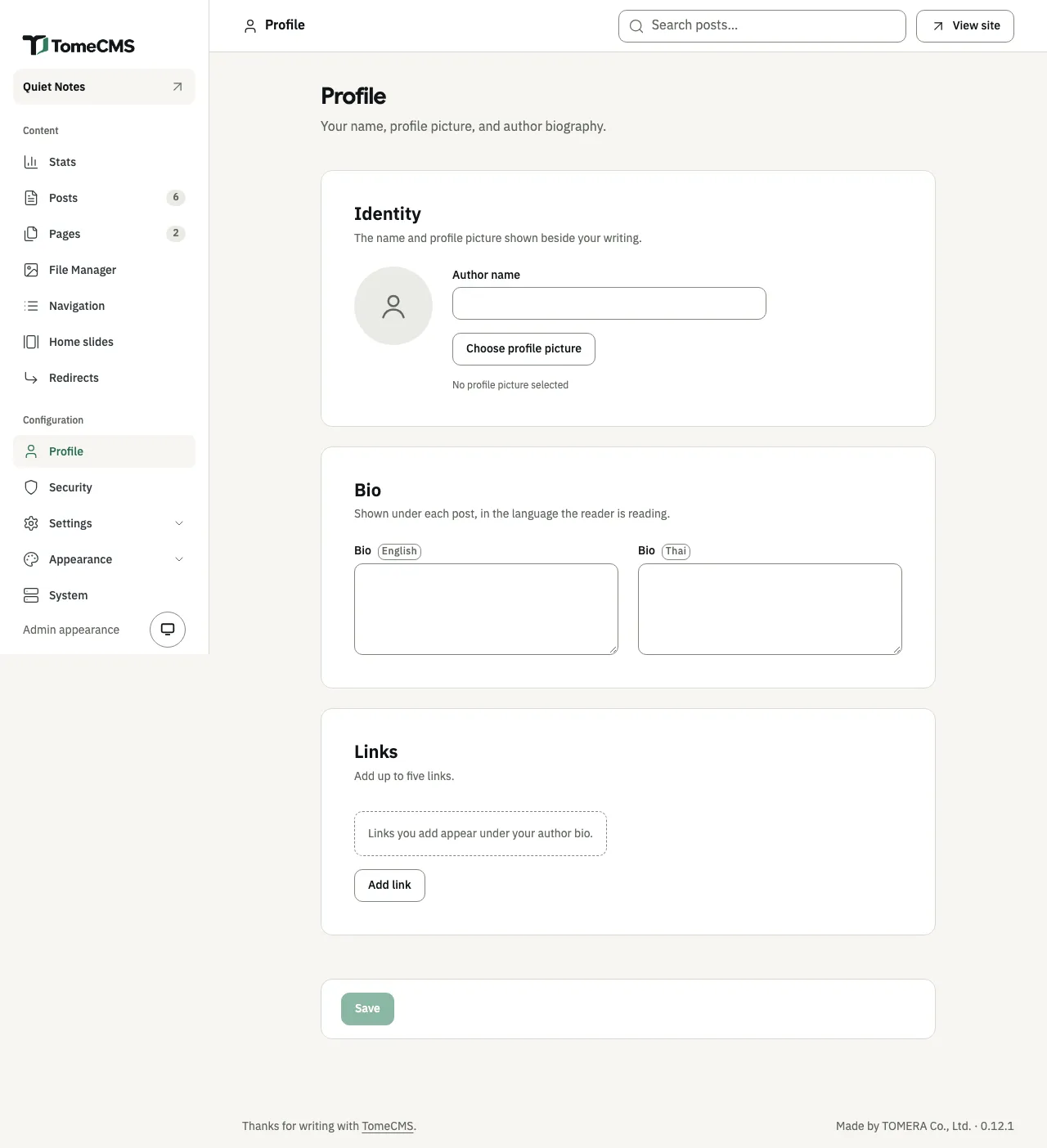
- Under “Identity”, type the “Author name”, up to 120 characters. “Choose profile picture” picks an image from the File Manager, and the bin beside it, “Remove profile picture”, takes it off. While the image is your profile picture, the File Manager will not delete it.
- Under “Bio”, write a short biography in English and in Thai, up to 1,000 characters each. Each post shows the one in the language the reader is reading.
- Under “Links”, press “Add link” for each link you want under your bio, up to five. Each has a name, chosen from a list, and an address that starts with
http://orhttps://. The list offers GitHub, X, LinkedIn, Facebook, Instagram, YouTube and “Website”, which a new link starts on. “Other…” opens a field for a name of your own, up to 80 characters. The name is only the words beside the link: a theme picks its mark from the address. “Remove” takes a link out. - Press “Save”. The admin says “Saved.”
Passkeys and recovery codes
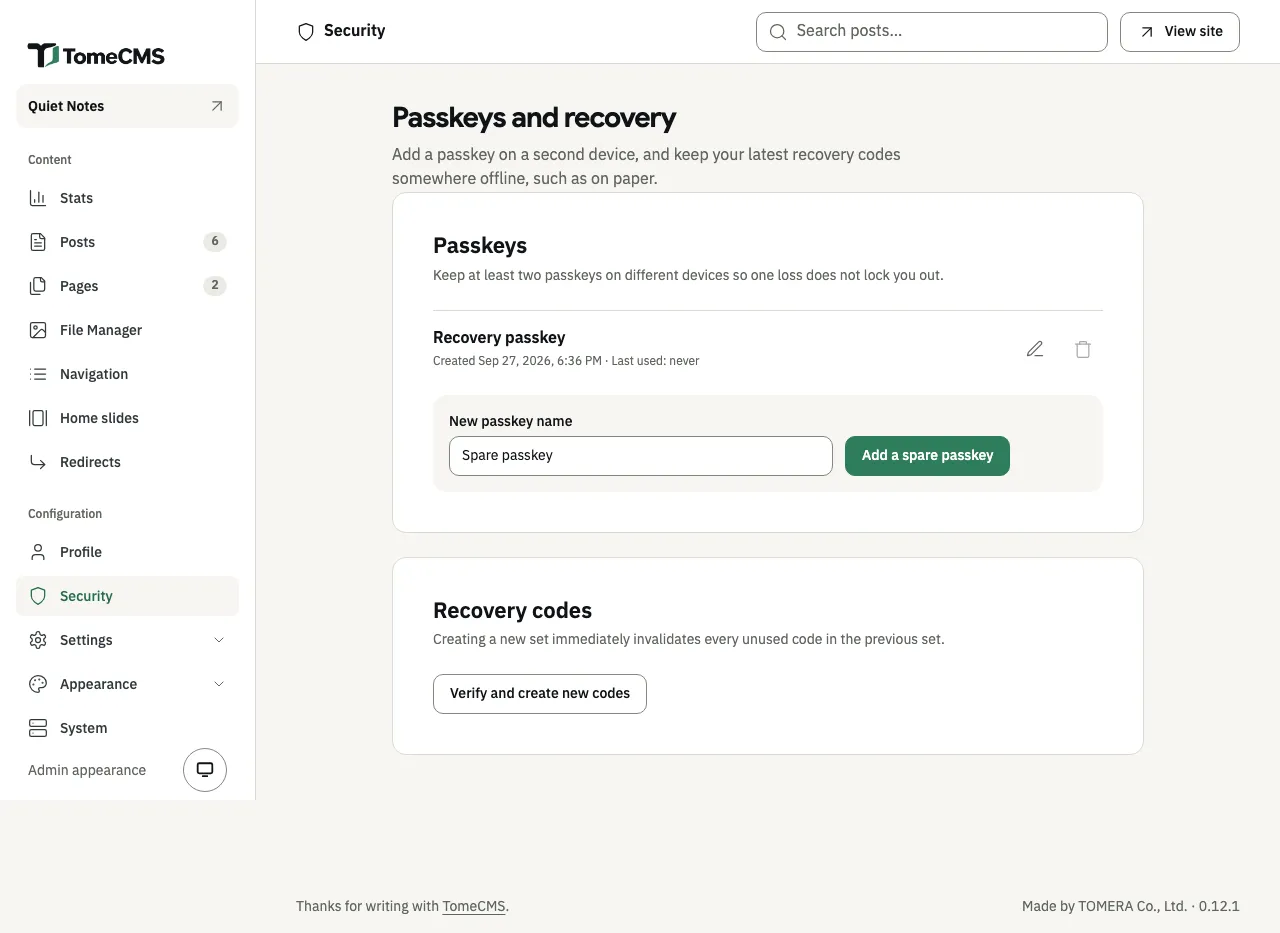
Section titled “Passkeys and recovery codes”“Security” opens “Passkeys and recovery”. TomeCMS has no password: you sign in with a passkey your device keeps. This screen is where you add a second one and replace your recovery codes, so that losing a device does not lock you out.
Your passkeys
Section titled “Your passkeys”Each passkey is listed with its name, when it was created and when it was last used, or “never”. Keep at least two, on different devices.
To add one, type a “New passkey name”, up to 80 characters, and press “Add a spare passkey”. Your browser then asks your device to create the passkey. When it is saved, the admin says “Spare passkey added.” The sign-in page takes any of your passkeys.
The pencil renames a passkey: change the “Passkey name” and press “Save name”, or “Cancel rename” to leave it. The bin deletes a passkey at once, without asking first. It stays off while only one passkey is left, so the last one cannot be deleted.
Recovery codes
Section titled “Recovery codes”The ten codes from the first-run wizard each let you back in once, from any browser. To replace them, press “Verify and create new codes”. The admin asks for one of your passkeys, then shows ten new codes, once, with “Copy codes”. Keep them somewhere other than the devices that hold your passkeys. Every unused code of the old set stops working at that moment.
Getting back in explains how to use a spare passkey or a code when you have lost a device, and what to do with neither.
If your session has ended while the screen is open, it asks you to “Verify the TomeCMS owner”. Press “Verify with passkey”, or “Recover access” to go to the recovery page.
Maintenance
Section titled “Maintenance”“Maintenance”, under “Settings”, closes the public site while you work on it and shows visitors a page of your choosing. Maintenance mode walks through the screen.