

The file library
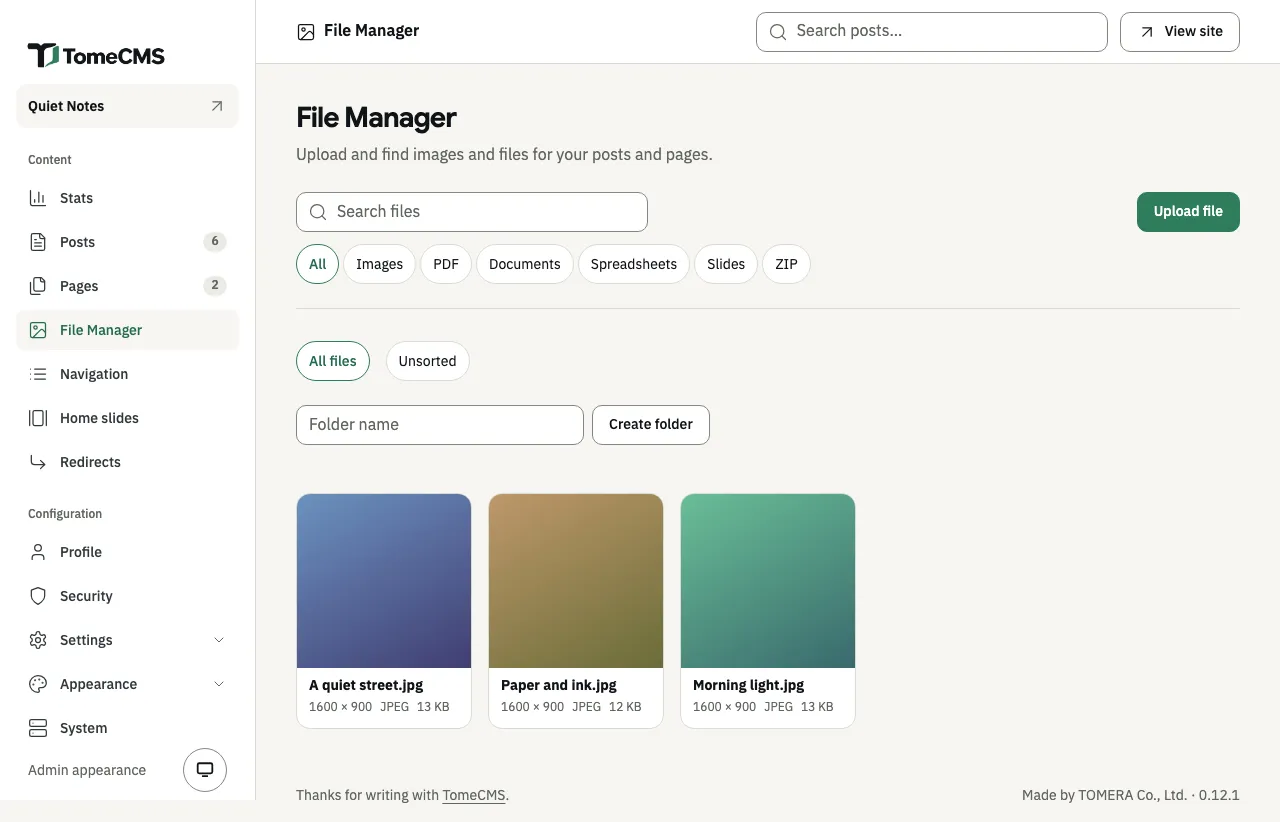
“File Manager”, under “Content”, holds every image and document you have uploaded to the site. The editor, “Home slides”, “Profile”, the maintenance page and the “Popup” plugin pick their images from it, and a post or page links to its documents there. A file you upload from one of those screens lands here as well.
Uploading
Section titled “Uploading”Choose the folder the file belongs in first, then press “Upload file” and pick it. A file uploaded from “All files” goes to “Unsorted”. The screen shows “Uploading…” with how far it has got, and the new file appears first, since the File Manager lists the newest first.
| Kind | Types | Largest |
|---|---|---|
| Images | JPEG, PNG, WebP, GIF, AVIF | 8 MB |
| Documents | PDF, Word (.docx), Excel (.xlsx), PowerPoint (.pptx), CSV, text (.txt), ZIP |
25 MB |
The older Office formats, such as .doc and .xls, are not taken. The server reads each file before it keeps it, and refuses one that is empty or whose contents don’t match its file type. It refuses an Office file that carries macros, and asks you to save it without them. A CSV or text file has to be UTF-8, and the admin says how to save one that way from Excel. An image can have at most 40 million pixels.
The file goes from your browser straight to the site’s object storage. If storage turns it away or does not answer in time, the admin says why and asks you to try again.
Finding a file
Section titled “Finding a file”“Search files” looks in file names and in images’ alt text. The type choices narrow the list to “Images”, “PDF”, “Documents” (Word and text files), “Spreadsheets” (Excel and CSV), “Slides” (PowerPoint) or “ZIP”, and “All” shows everything again. The folders on their own row narrow it further. The screen shows 48 files at a time, and “Load more” brings the next ones.
The page’s address keeps the type and the folder you chose, so a reload or a bookmark opens the same view.
Folders
Section titled “Folders”Type a name in “Folder name”, up to 80 characters, and press “Create folder”. Each folder has a “…” inside its chip, with “Rename” and “Delete”. On a phone, where the folders are a list to choose from, the chosen folder’s “…” sits beside that list. “Rename” opens a field with the name in it, and “Save folder name” keeps the new one. Deleting a folder keeps its files: they move to “Unsorted”, as the admin warns before it goes ahead.
A file sits in one folder, or in “Unsorted” when it has none. To move it, open it and change “Folder”.
A file’s details
Section titled “A file’s details”Press a file to open its details. They show the image or the document’s type, its name, its size in pixels for an image, its format and its weight.
- “Folder” moves the file to another folder.
- “Alt text”, for images only, says what the image shows, up to 300 characters. An image put into a post or page through the editor’s “Image” takes this text with it, and a slide without a heading needs it.
- “File URL” is the file’s address on your site,
/media/followed by the file’s id. It keeps working for as long as the file is in the File Manager.
Press “Save” to keep a change to the folder or the alt text, and the admin says “Saved.” “Copy URL” copies the address. Where the browser does not allow that, the address is selected for you to copy with your keyboard.
Deleting a file
Section titled “Deleting a file”“Delete” asks “Delete file?” first, and a deleted file cannot be brought back.
The File Manager refuses to delete a file that is still in use. It says how many places use it, and lists them, with a link to each except your profile picture:
- a post that has it as its cover, or has it in its text, drafts included
- a page that has it in its text
- your profile picture under “Profile”
- a home slide, named by its heading, or by its place and language when it has none
- the maintenance page, while its “Image” template uses it
- a plugin that keeps it as a setting, such as the “Popup” image, even while the plugin is off
Take the file out of each of those places, then delete it. The site’s logo and icon, set under “General”, are kept apart from the File Manager and never hold a file here.
If the file store cannot be reached while a file is being deleted, the admin asks you to try again, and “Retry” does.